
Introduction
Scanning documents with your iPhone streamlines everyday tasks, whether you need to save a contract, receipt, or personal note. With these powerful tools at your disposal, understanding where these scanned documents go enhances your productivity. Knowing the default storage paths and accessing and managing these documents efficiently can maximize your iPhone usage.
How to Scan Documents Using Your iPhone
Jumping into scanning documents with your iPhone is straightforward. Apple’s integrated options and third-party apps offer varied user experiences.
- Utilizing the Notes App:
- Open the Notes app.
- Create a new note or choose an existing one.
- Tap the camera icon and select ‘Scan Documents’.
-
Align your document in the frame and, upon detection, it will automatically capture the scan.
-
Exploring Third-Party Scanning Apps:
Applications like Adobe Scan, CamScanner, and Scanner Pro can enhance your scanning with OCR and cloud features.
With the scanning process now clear, it is crucial to determine where these scanned files are stored on your iPhone.
Default Storage Locations for Scanned Documents
After scanning, knowing where these documents reside ensures they are readily available when needed. iOS typically saves scanned files in these primary locations:
-
Storage in the Notes App:
Documents scanned and saved in Notes remain within that particular note. Although integrated seamlessly, this can obscure the file path. -
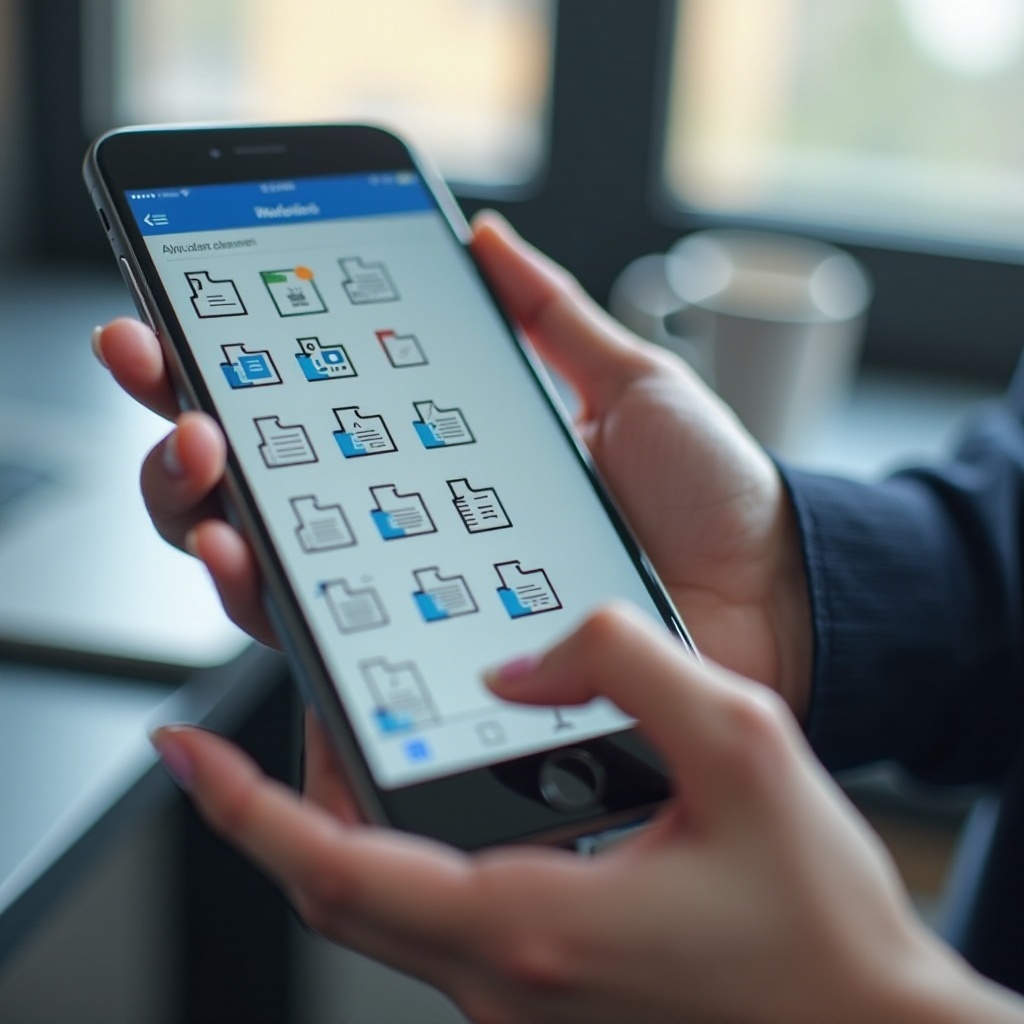
Accessing Through the Files App:
If you’re using the Files app to manage scans, documents are usually stored under ‘On My iPhone’ or linked to cloud services like iCloud Drive. This setup provides a visible directory, making file management simpler.
Understanding these storage principles helps in locating files. But to make retrieval easier, one needs to learn effective management techniques.
How to Access and Manage Scanned Documents
Proficiently accessing and organizing your scanned documents enhances workflow efficiency.
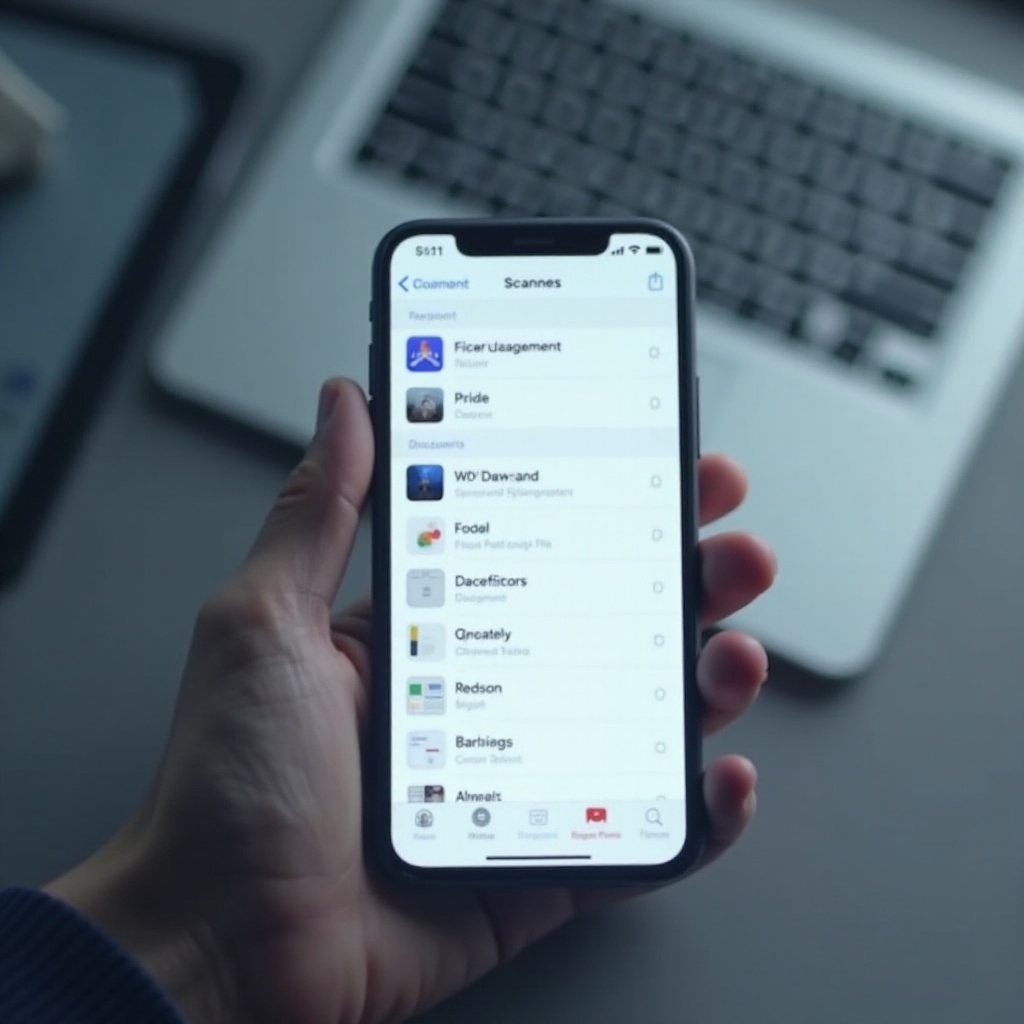
- Navigating the Files App:
- Launch the Files app on your iPhone.
- Use the Browse tab to view locations like iCloud Drive, On My iPhone, or app-specific folders.
-
Tap your document to view or modify it directly.
-
Organizing Documents with Folders and Tags:
- Employ the ‘New Folder’ feature to categorize documents.
- Utilize tags for enhanced classification and quick retrieval.
Managing these documents effectively is pivotal, yet occasionally, users face challenges—switching to resolving common problems will address these issues next.
Troubleshooting Common Issues
Resolving small issues promptly ensures uninterrupted document access and management.
- What to Do If You Can’t Find Your Scans:
- Verify both the Notes and Files apps to ensure the scan isn’t placed somewhere unexpected.
-
Conduct a search using part of the document name when unsure.
-
Resolving Sync Issues with iCloud:
- Confirm iCloud Drive is enabled via Settings > [Your Name] > iCloud.
- Ensure a reliable internet connection for seamless sync functionality.
Once you’re adept at troubleshooting, employing strategies for effective management backs up your efforts, ensuring a organized document library.
Tips for Efficient Document Management on iPhone
Effective management is about more than just saving time; it secures your data and makes information retrieval simpler.
- Naming and Categorizing Your Documents:
- Establish a consistent naming pattern.
-
Opt for simplicity in names but keep details for easy identification.
-
Backing Up with Cloud Services:
Regular backups using iCloud or other cloud solutions guarantee data security and multi-device accessibility.
Applying these management strategies ensures that your scanned files remain accessible and protected, rounding off this comprehensive guide.
Conclusion
By understanding where scanned documents go on an iPhone and managing them efficiently, users can maintain order and accessibility. With built-in features and intelligent strategies, managing documents becomes an effortless experience. Leverage your iPhone’s capabilities and take control of your digital filing.
Frequently Asked Questions
Can I change the default location for scanned documents on my iPhone?
No, but you can manually move documents in the Files app to preferred folders.
How do I share scanned documents from my iPhone?
Use the share icon in the Notes or Files app to send documents via email, AirDrop, or other sharing options.
What should I do if a scanned document doesn’t sync with iCloud?
Check your internet connection, ensure iCloud is enabled, and verify you have adequate iCloud storage for syncing.