
Introduction
Many HP Envy laptop owners find themselves dealing with battery issues as their devices age. To ensure your laptop runs smoothly and efficiently, maintaining a healthy battery is essential. This guide will help you understand when a battery replacement is necessary and how to conduct it effectively.

Understanding Your HP Envy Laptop Battery
Your laptop’s performance significantly relies on the type and health of its battery. HP Envy laptops, typically powered by lithium-ion batteries, are known for their reliability. Despite this, all batteries face wear and tear over time, leading to reduced performance or malfunctions.
-
Types of Batteries Used in HP Envy Laptops: Most HP Envy models come equipped with built-in lithium-ion batteries, designed to be lightweight and deliver optimal performance. However, their capacity diminishes over time due to various factors.
-
How to Check Your Battery Health: Using tools like HP’s diagnostic utility or reliable third-party applications, you can frequently assess your battery’s condition. These tools offer insights into charge cycles and remaining capacity, which are critical indicators of when a replacement is necessary.
Recognizing signs that your battery requires replacement is the first step. With this understanding, you’re prepared to take informed action, ensuring your laptop remains operational and effective.
Preparing for Battery Replacement
Effective battery replacement begins with the correct tools and understanding necessary precautions. Being well-prepared ensures the process is both smooth and safe.
-
Necessary Tools for Replacement: Prepare by gathering a small screwdriver set, an anti-static wrist strap, and make sure you have a clean workspace. These tools help you safely disassemble components and minimize the risk of damage.
-
Safety Precautions You Must Follow: Begin by powering down and unplugging the laptop. Wear an anti-static wrist strap to protect sensitive electronic components from static electricity. Handle all components, especially the battery, with care to prevent accidents.
Once prepared, you’ll be ready to move forward with battery replacement, knowing you have minimized risks and are set for success.
Step-by-Step Guide to Replacing the Battery
Follow these steps carefully to replace your HP Envy laptop battery:
-
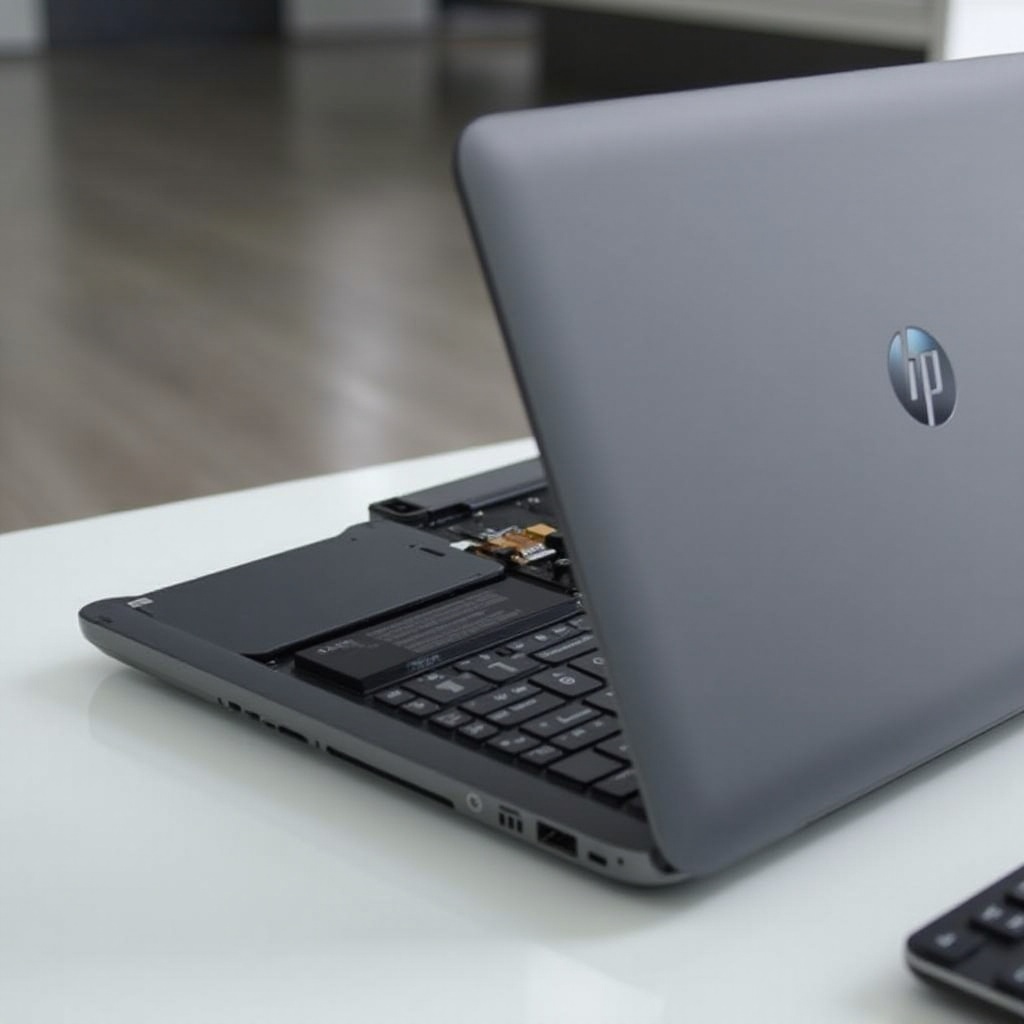
Locating the Battery in Your HP Envy: Start by flipping your laptop over. Typically, HP Envy models have a compartment secured by screws.
-
Safely Removing the Old Battery:
- Use a screwdriver to take out the screws on the battery cover.
- Carefully lift the cover to reveal the battery.
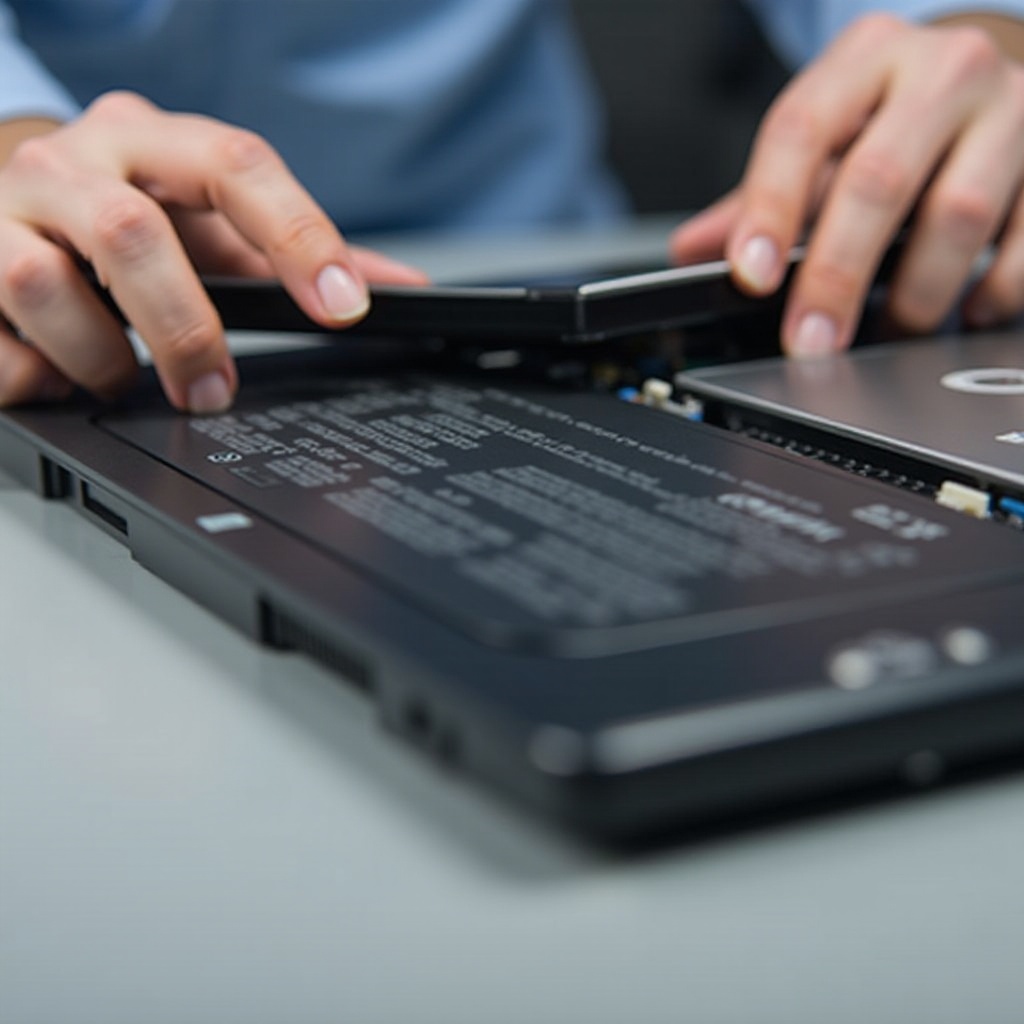
- Gently disconnect the battery’s connector, avoiding strain on any wires.
-
Remove the battery by lifting it out of the compartment.
-
Proper Installation of the New Battery:
- Align the new battery in the compartment and connect the battery cable correctly.
- Secure the battery compartment cover with screws.
Ensuring all parts are securely assembled minimizes risk and ensures your laptop operates without hitches post-replacement. Your laptop is now ready to provide seamless service powered by the new battery.
Post-Replacement Tips for Optimal Performance
After replacing the battery, you need to follow certain steps to ensure it operates at peak efficiency:
-
How to Dispose of the Old Battery Correctly: Always dispose of the old battery at designated electronic waste recycling facilities to prevent environmental hazards.
-
Calibrating Your New Battery: Initially, charge your new battery fully, then allow it to discharge completely a few times. This process conditions the battery, ensuring accurate future charge readings.
Performing these post-replacement actions will not only help in maintaining the new battery but will extend its lifespan, keeping your device in excellent working order.
Troubleshooting Common Post-Replacement Issues
Even with careful replacement, some issues might occur. Here’s how to address them:
-
What to Do if the Battery is Not Recognized: Double-check all connections to ensure they are secure. A simple restart of the laptop might also resolve recognition issues.
-
Handling Overheating Problems: Verify that the laptop’s air vents are not blocked. If overheating persists, consider an external cooling pad to enhance airflow.
These troubleshooting steps are essential in maintaining the health of your device after a battery replacement. By addressing issues promptly, you ensure long-term performance and reliability.
Conclusion
Completing a battery replacement for your HP Envy laptop doesn’t have to be a daunting task. With the steps and advice outlined in this guide, you can significantly enhance your laptop’s performance. Regular maintenance and timely battery replacements are key to keeping your device running efficiently.
Frequently Asked Questions
How long does an HP Envy battery last?
HP Envy batteries typically last between 2 to 4 years, depending on usage habits and care.
Can I use my HP Envy laptop while charging?
Yes, using your laptop while charging is safe, though it’s advisable to avoid high-load tasks that generate excessive heat.
Where can I purchase a genuine HP Envy battery replacement?
Genuine HP batteries can be purchased from the official HP website, authorized retailers, and reputable online platforms like Amazon.