
Introduction
Securing your child’s digital environment is a priority for many parents. With the Nintendo Switch offering access to platforms like YouTube, managing content becomes crucial. If you’re concerned about what your child might encounter online, this guide will equip you with effective strategies to block YouTube on the Nintendo Switch. Utilizing parental controls and mobile apps, this article will guide you through each step to maintain a safe gaming space.
Understanding Parental Controls on Nintendo Switch
The Nintendo Switch is an incredibly versatile gaming console, enjoyed by users of all ages. However, its ability to access the internet can lead to exposure to unsuitable content. Parental controls are an essential feature to shield young users from inappropriate material. By setting boundaries, you can ensure a secure environment tailored to your child’s needs. Let’s explore how these controls work and why they’re important.
Setting Up Parental Controls
Activating parental controls on your Nintendo Switch can be done through the console itself or via a mobile app. Both offer comprehensive tools to block specific applications like YouTube.
Creating and Linking a Nintendo Account
Start by setting up a Nintendo Account, vital for parental controls management:
1. Create an account on the official Nintendo website.
2. Link your account to the Nintendo Switch console.
3. Access the parental controls settings on the console after linking.
Using Console Settings for Parental Controls
Console settings offer direct ways to impose restrictions:
1. Open System Settings on the Home menu.
2. Select Parental Controls and apply age-appropriate restriction levels.
Implementing these basic controls provides a solid foundation before delving into advanced options available through the Nintendo Parental Controls App.
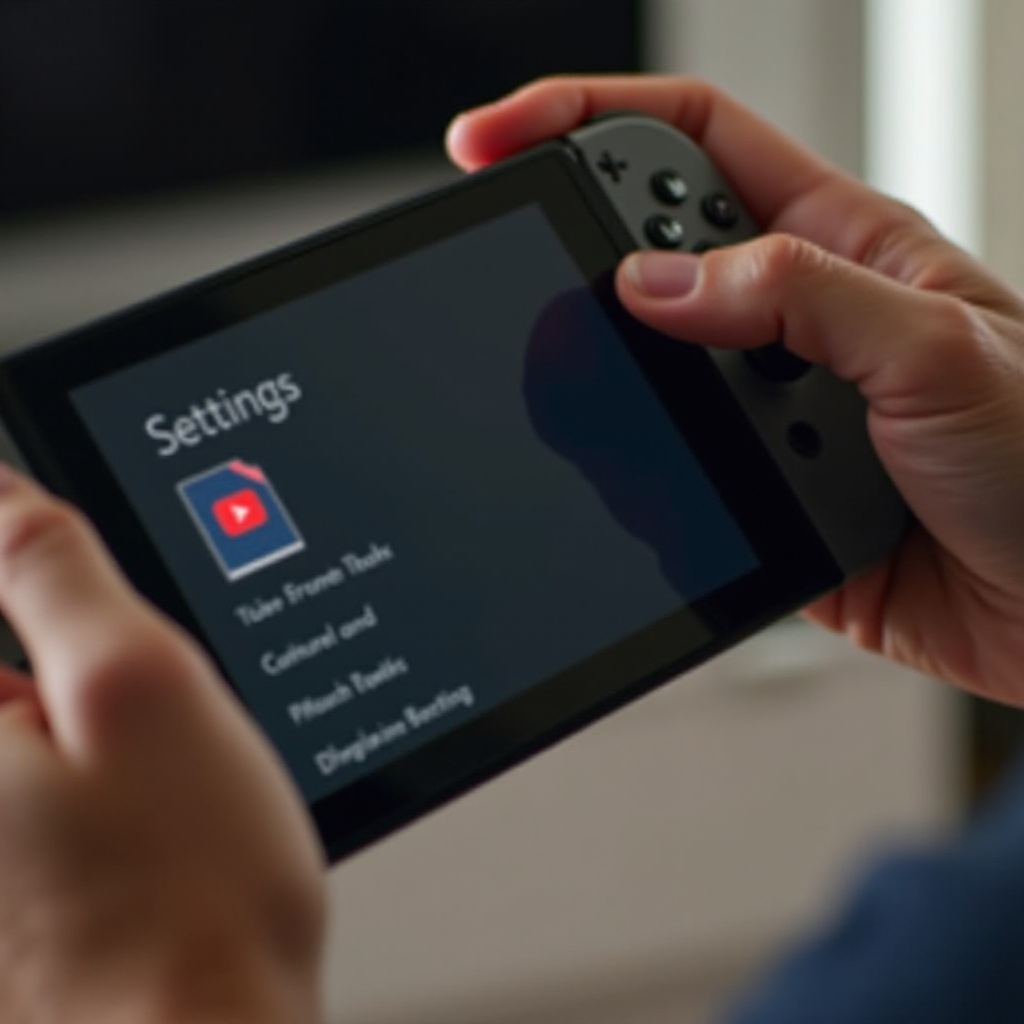
Using the Nintendo Parental Controls App
For increased control, the Nintendo Parental Controls App is a powerful tool to manage content easily. Setting this up allows you a comprehensive view of your child’s gaming habits and restrictions.
Downloading and Installing the App
Download the app on your smartphone via the App Store or Google Play. It’s your portal to managing Switch settings remotely:
– Install and log in using your Nintendo Account.
Configuring the App for YouTube Restrictions
After installing, configure settings within the app to block YouTube:
1. Log in and access the settings.
2. Set ‘Restricted Software’ to block YouTube on the Switch.
3. Save and confirm your chosen restrictions.
Advantages of Using the Mobile App
The app offers flexibility, updating settings in real time and viewing usage data directly on your phone, making it easy to adjust control levels on the go.
These settings should now effectively block YouTube when tested. It’s crucial to make sure these are consistently applied and updated.
Verifying and Testing Restrictions
Once your settings are configured, verifying their effectiveness is the next essential step. It ensures that the restrictions function correctly and your child remains shielded.
Ensuring Effectiveness of Restrictions
Attempt to access YouTube to test whether parental controls are active:
1. Open YouTube from the console.
2. Check that access is denied, requiring a passcode, or is completely blocked.
Troubleshooting Common Issues
If YouTube is still accessible:
1. Verify that the app settings are properly synchronized and saved.
2. Restart your console to apply the changes fully.
3. Re-check the app’s connection to ensure the settings are synced correctly.
Reviewing and testing keeps your controls updated, ensuring continued protection.
Additional Tips for Managing Content on Nintendo Switch
Preventing YouTube access is part of a broader strategy to manage gaming habits. Effectively balancing restrictions and teaching responsible usage enhances this goal.
Setting Age-Appropriate Filters
Utilize the app to apply automatic filters matching your child’s age:
1. Explore filtering options within the app.
2. Select age-appropriate content filters.
Monitoring and Adjusting as Needed
Keep an eye on gaming patterns and swiftly adjust settings if necessary:
1. Monitor playtime and app usage via the app’s dashboard.
2. Adjust restrictions to fit evolving maturity levels or interests.
This layered approach of monitoring maintains safe and enjoyable gaming for your child.
Conclusion
To block YouTube on the Nintendo Switch, applying a combination of proactive measures and utilizing parental controls can cultivate a safer environment for children. Following the detailed steps outlined in this guide, you can confidently manage the content accessible on the console. Regular reviews and the adaptability of these settings allow ongoing protection as your child grows and their gaming habits change.
Frequently Asked Questions
What if the restrictions aren’t working?
Ensure that all settings are saved properly. Try restarting the console and confirming the app is updated.
Can I block YouTube without the app?
Basic restrictions can be applied through the console, but the app offers more control options.
How can I monitor the time spent on apps?
The Nintendo Parental Controls App allows you to track playtime and set alarms or limits.