
Introduction
FaceTime has revolutionized the way we communicate, providing seamless audio and video calls across Apple devices. While many of us are familiar with using FaceTime on iPhones and iPads, a common question arises regarding its functionality on the Apple Watch. This guide will dive into the features of FaceTime on Apple Watch, how to set it up, and operate effectively.
Understanding FaceTime Capabilities on Apple Watch
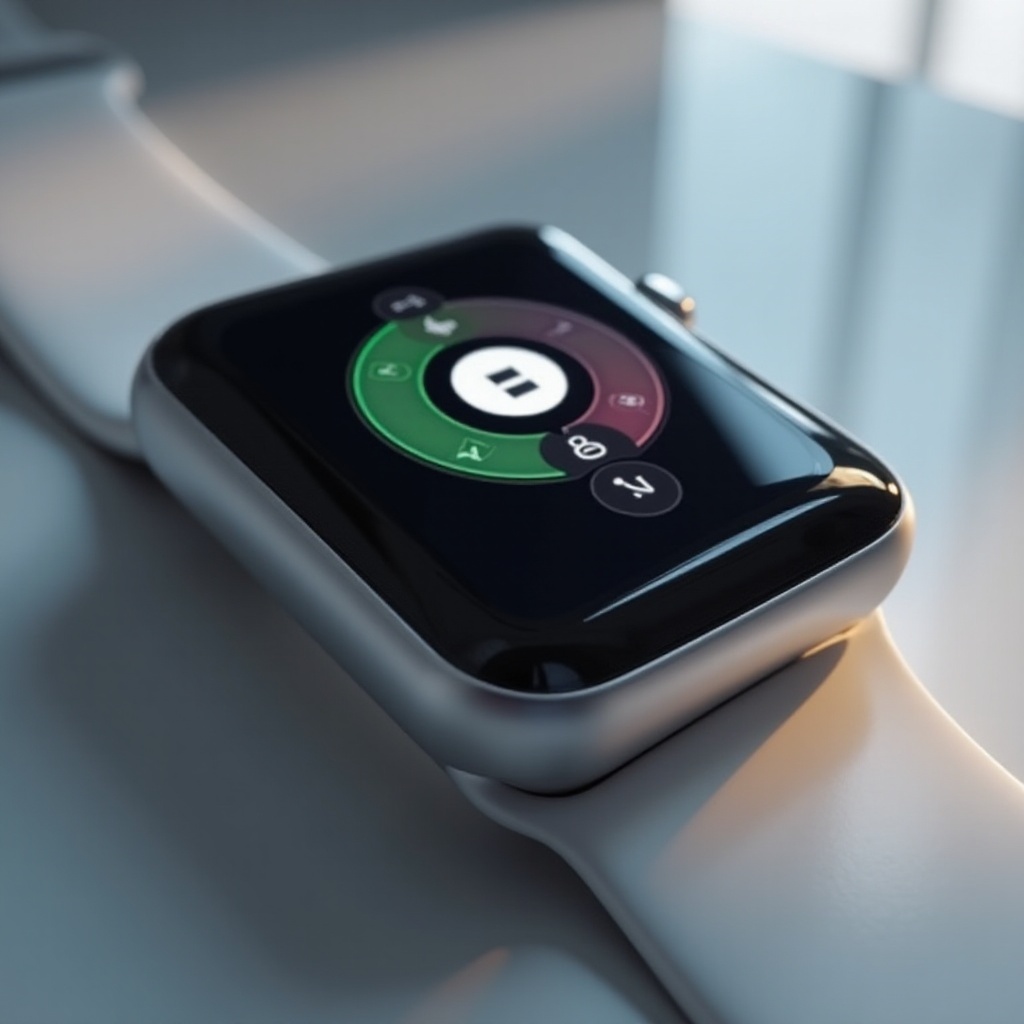
The Apple Watch, known for its advanced features packed into a compact design, offers FaceTime audio calls but lacks video capabilities due to the absence of a camera. Despite this, FaceTime audio serves as an efficient alternative, enabling users to connect conveniently for quick chats or while managing other tasks hands-free. This capability enhances the Apple Watch, expanding its utility beyond being a fitness tracker.
Apple’s design choice to limit the Apple Watch to audio FaceTime calls preserves its sleek form factor while still delivering a rich communication experience. With seamless integration across Apple devices, users find value in its ability to maintain connectivity without needing to pull out their phones.
Setting Up FaceTime Audio on Apple Watch
Before diving into FaceTime audio calls, ensure proper setup to facilitate smooth operation. Here’s how to prepare:
1. Ensure Compatibility: Verify that both your iPhone and Apple Watch run the latest iOS and watchOS updates. This step ensures all features work optimally, reducing any chances of glitches.
2. Enable Wi-Fi or Cellular: Confirm that your Apple Watch is connected to Wi-Fi, or activate cellular functionality if available.
3. Set Up FaceTime on iPhone: On your iPhone, navigate to Settings, find FaceTime, and ensure it is enabled with your Apple ID linked appropriately.
4. Sync Your Contacts: Double-check that your contacts are synced to your Apple Watch for smooth call initiation directly from your wrist.
Once you complete these setup steps, your devices are prepared for FaceTime audio calls, thus broadening your communication avenues.
Making and Receiving FaceTime Audio Calls
After setting up, initiating and receiving FaceTime audio calls from your Apple Watch is both simple and convenient:
– Making a FaceTime Audio Call:
1. Press the Digital Crown to access the Home Screen.
2. Launch the Phone app.
3. Select Contacts and pick who you’d like to call.
4. Choose the phone icon and opt for FaceTime Audio.
– Receiving a FaceTime Audio Call:
– An incoming FaceTime audio call will alert your Apple Watch. Tap the green button to answer.
This feature empowers users, facilitating hands-free communication while active or engaged with tasks both at home and away.
Troubleshooting Common FaceTime Issues
Even with a correctly set up device, occasionally, you might face issues with FaceTime on the Apple Watch. Here are solutions for common problems:
– Ensuring Device Compatibility:
– Confirm all devices run compatible software. Updates often fix issues, improving connectivity and performance.
– Addressing Connectivity and Quality:
– Low call quality may stem from weak Wi-Fi or cellular signal. Strengthening this can often enhance call clarity.
– Restart your devices if experiencing persistent issues; reboots frequently resolve temporary glitches.
These troubleshooting tips help maintain a consistent and high-quality communication experience, enabling effective use of your Apple Watch’s capabilities.
Enhancing Communication with Apple Watch Apps
Beyond FaceTime, several apps are designed to maximize the communication potential of your Apple Watch. These applications extend functionality and adaptability:
– Messaging Apps: Use WhatsApp or Telegram for text messages without touching your iPhone.
– VOIP Services: Expand your calling options with Skype or Zoom, providing versatility in communication methods.
These apps enhance your Apple Watch’s utility, offering varied approaches to stay in touch effectively, whether for personal or professional use.
Future Prospects for FaceTime on Apple Watch
The Apple Watch has seen continual advancement since its inception, with every iteration introducing enhanced features. While video FaceTime on the Apple Watch isn’t feasible currently, future technological innovations could make this possible. Rumor mills regarding future Apple Watches hint at potential camera incorporations, suggesting the evolution of FaceTime capabilities is only a matter of time.
Until then, Apple focuses on refining the existing FaceTime audio experience, ensuring it remains smooth and seamless across devices. This dedication to improvement keeps users hopeful for even greater functionalities.

Conclusion
In summary, while the Apple Watch does not support video FaceTime calls, its audio counterpart provides efficient on-the-go communication. With proper setup and usage, you can maximize this tool’s potential, staying connected without compromise.
Frequently Asked Questions
Can I make video FaceTime calls on Apple Watch?
No, the Apple Watch only supports FaceTime audio due to the lack of a camera.
How can I improve FaceTime call quality on my Apple Watch?
Ensure a strong Wi-Fi or cellular connection and keep your devices updated to enhance call quality.
What should I do if FaceTime isn’t working on my Apple Watch?
Ensure devices are updated, check connections, and try restarting your devices to fix glitches.